Using ThreatStream as a TAXII Client
Using ThreatStream as a TAXII client enables you to aggregate TAXII data in one location and add it to the intelligence you are already receiving on ThreatStream.
The ThreatStream TAXII client can receive data from TAXII 1.x, 2.0, and 2.1 servers.
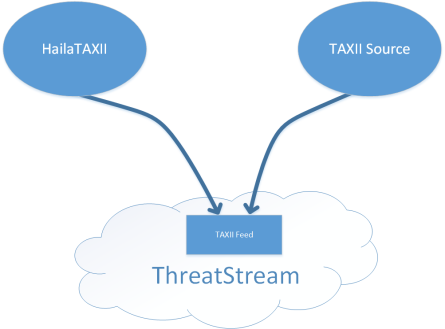
Getting started with your ThreatStream TAXII Client requires the following steps:
-
Configure one or more TAXII Feeds. TAXII Feeds are dedicated channels for receiving TAXII data on ThreatStream.
See Managing TAXII Feeds for further guidance.
-
Add a TAXII source that you have access to as a Site on ThreatStream.
See Managing TAXII Sites for further guidance.
-
If you want to receive TAXII data from the site, configure the collections of interest as Poll Collections.
If you want to push TAXII data to the site, configure the collections of interest as Push Collections.
You can configure ThreatStream to poll or push on a regular interval. The data becomes part of your threat intelligence through one of your TAXII Feeds on ThreatStream.
See Managing TAXII Site Collections for further guidance.
Managing TAXII Sites
The Sites tab enables you to configure and manage communication between ThreatStream and external TAXII sources to which you have access. Configuring a Site on ThreatStream involves authenticating to a Discovery URL for the site. After you have configured a TAXII server site, you can poll data from available collections on the server.
You can configure Poll Collections to poll data into ThreatStream on a regular interval. You can also configure Push Collections to push data from ThreatStream to collections on the site. Data is pushed at a regular cadence and based on a saved search that you specify.
Note:
-
The ThreatStream TAXII client can receive data containing any valid STIX entities; see Supported Attributes for STIX Entities for a full list. However, the ThreatStream TAXII client can only push indicators to a TAXII server.
-
ThreatStream TAXII clients utilize the following IP address as an outbound NAT gateway: 3.225.1.124. Anomali recommends that your TAXII server can connect to this IP address.
-
IPv6 observables cannot be pushed or polled.
-
Hash observables received from TAXII servers do not expire.
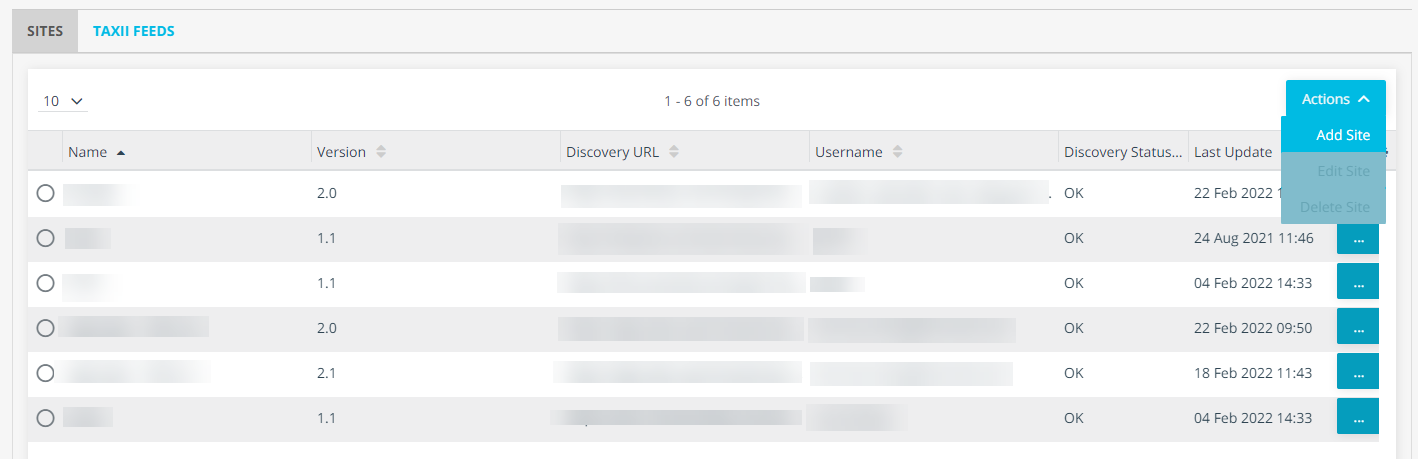
To configure a site:
- In the bottom-left corner of the side navigation panel, click
 > ThreatStream and then click TAXII.
 - Under Sites, click Actions > Add Site.
- Enter a meaningful Name for the site.
-
Select a TAXII Version. You can select TAXII 1.1, TAXII 2.0, or TAXII 2.1.
- Enter the Discovery URL.
-
(Optional) Select required authentication methods.
If you will use SSL Verification from the site, select Use Site SSL Verification.
If the site uses basic authentication, select Basic Authentication and enter your credentials for the site
If the site requires an SSL Two-Way Certificate, select SSL Two-Way Certificate and upload your certificate.
Note: ThreatStream supports SSL Two-Way Certificates in P12 and PEM format.
- Click Add Site. ThreatStream will now discover available TAXII feeds on the site.
-
To view discovered feeds, click
 . The site details are then displayed.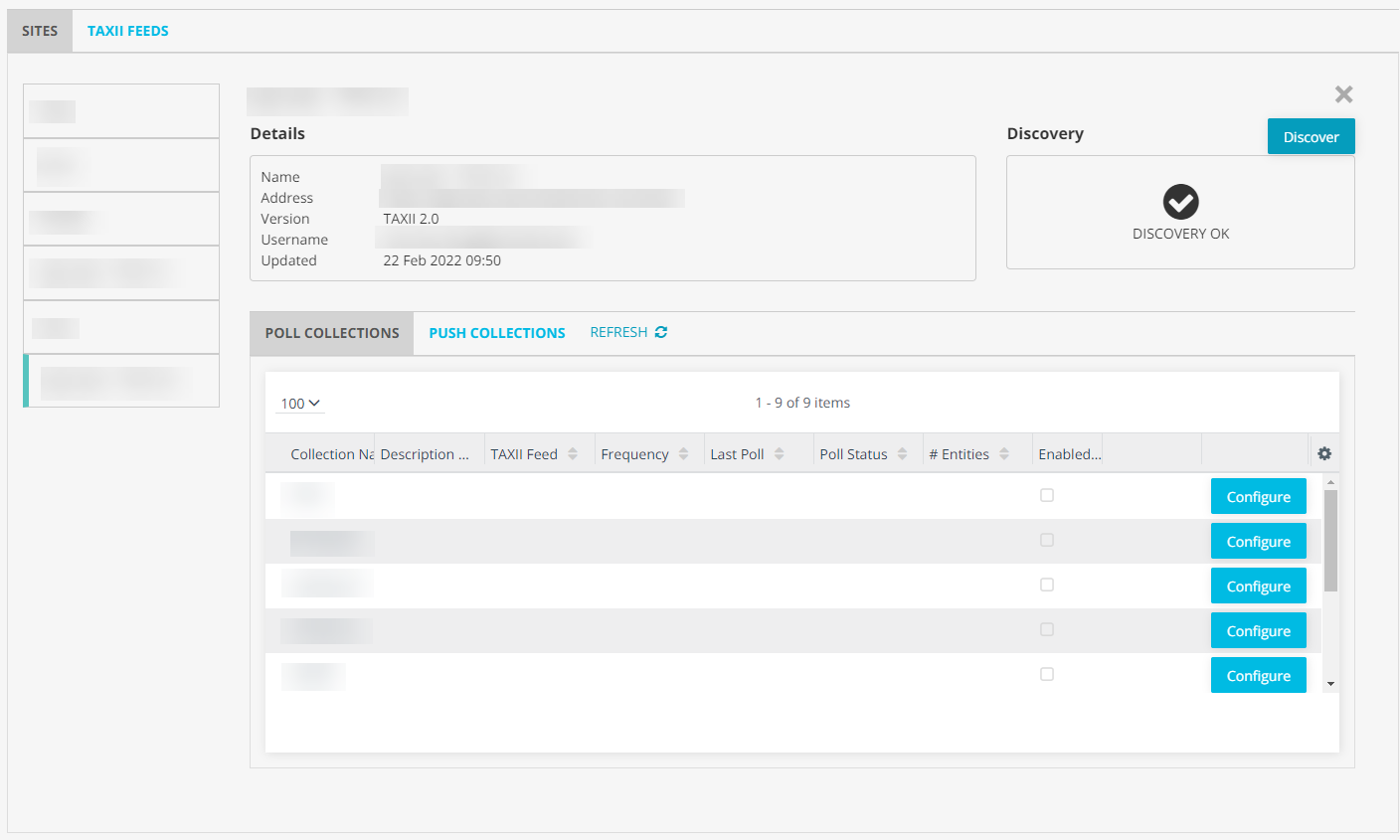
If feed discovery is unsuccessful an error code is displayed. You can click the error code for more information on why the discovery failed.
Managing TAXII Site Collections
After configuring a TAXII source as a site, ThreatStream discovers the collections that are available for you to poll data from and push data to on the site.
Managing TAXII 2.x Site Collections
TAXII 2.x sites can contain multiple API root URLs. In these cases, API roots contain their own poll and push collections. When you configure a TAXII 2.x site, each root URL is available as a secondary tab in the left site menu.
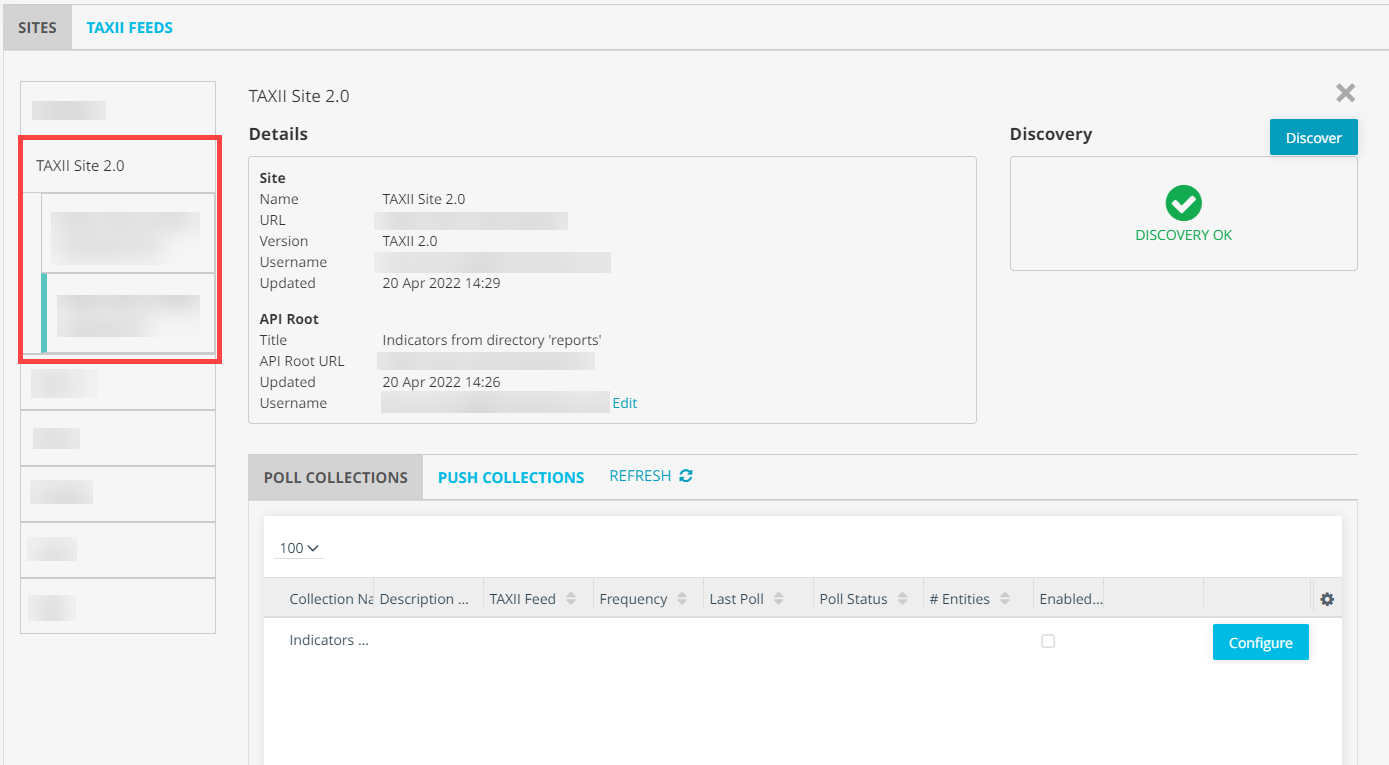
In some cases, API roots use credentials that are distinct from those configured for the site. Entering specific credentials for the root does not overwrite credentials configured for the site.
To configure credentials for an API root:
- In the bottom-left corner of the side navigation panel, click > ThreatStream and then click TAXII.
-
Under Sites, locate the TAXII server of interest and click
to expand the site details. -
In the left site menu, select the API root whose credentials you want to configure.
-
Click Edit next to the Username field.
-
Select User API Root specific credentials.
-
Select the required authentication methods:
-
If you will use SSL Verification from the site, select Use Site SSL Verification.
-
If the site uses basic authentication, select Basic Authentication and enter your credentials for the site
-
If the site requires an SSL Two-Way Certificate, select SSL Two-Way Certificate and upload your certificate.
-
-
Click Save.
The API root credentials have been configured.
Configuring Poll Collections
After authenticating to a TAXII server site, a list of collections available to poll is displayed under Poll Collections.
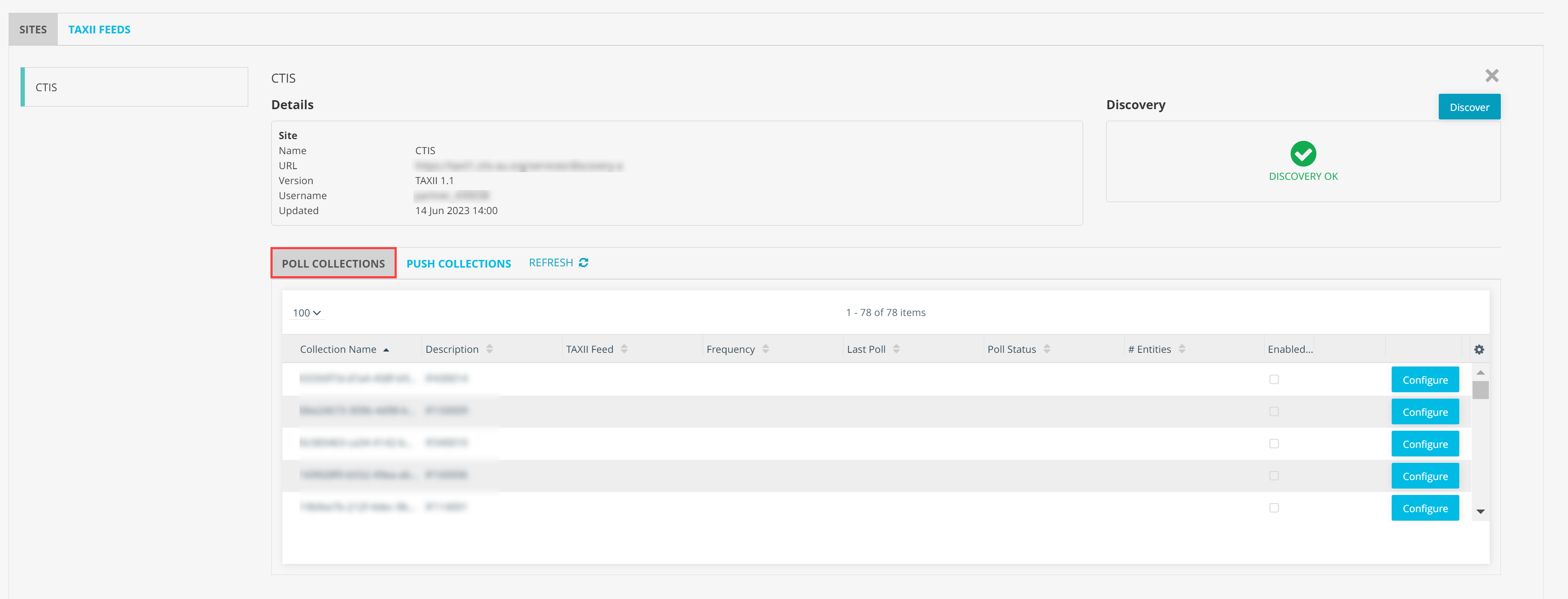
To configure a poll collection:
- In the bottom-left corner of the side navigation panel, click > ThreatStream and then click TAXII.
- Under Sites, locate the TAXII server of interest and click to expand the site details.
- A list of discovered collections is available under Poll Collections. To configure a collection, click Configure.
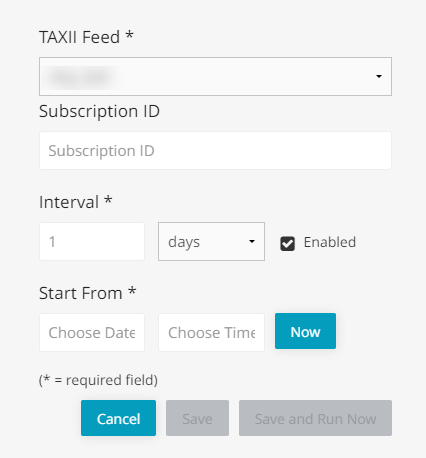
- Select a TAXII Feed to associate with the collection. Incoming data will be added to ThreatStream via the TAXII Feed you select.
- If required, enter your Subscription ID.
- Enter an Interval to specify the cadence at which ThreatStream will poll data from the feed.
- Enter a Start From date. This specifies the furthest timestamp you want to be polled. Click Now to use the current date and time.
- (Optional) When configuring TAXII 1.x sites, you can add more private tags. The following private tag options are available: Indicator Title, Indicator Description, and Simple Marking (can apply to multiple components).
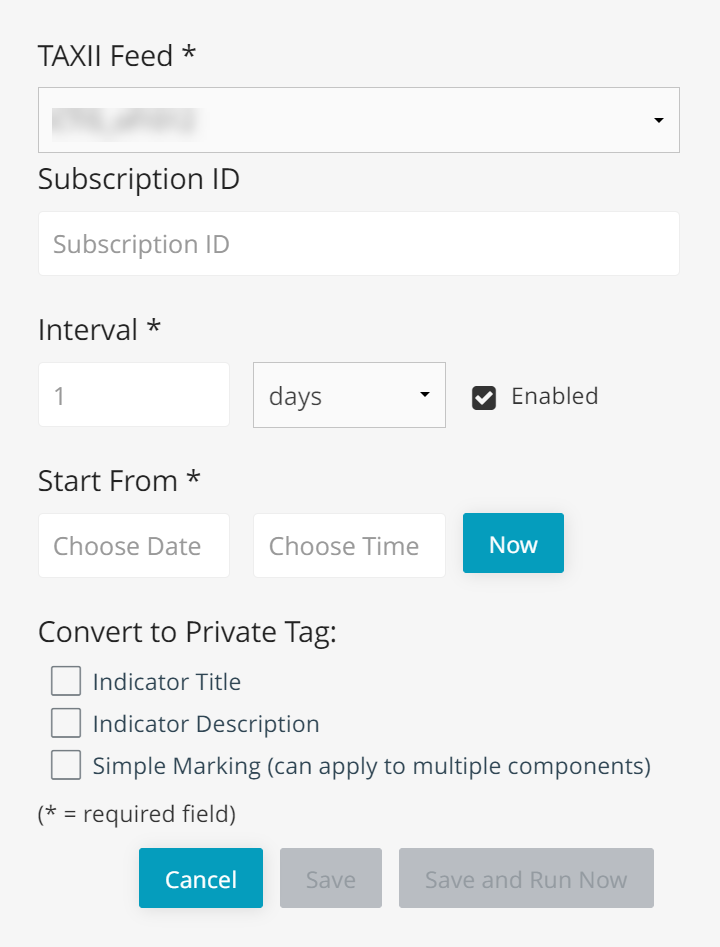
- To finish configuration and poll the feed, click Save and Run Now.
After configuring the collection, you can click the Poll Status to view a complete log of poll activity for the collection. Possible poll status values include:
-
Complete: The last task run was completed without errors. Click Complete for details.
-
Error: The last task run was not completed due to some errors. Click Error for details.
-
Resting: The task run was not completed during the time allowed and will be resumed at the next scheduled time. Click Resting for details.
-
Running: The task is currently running.
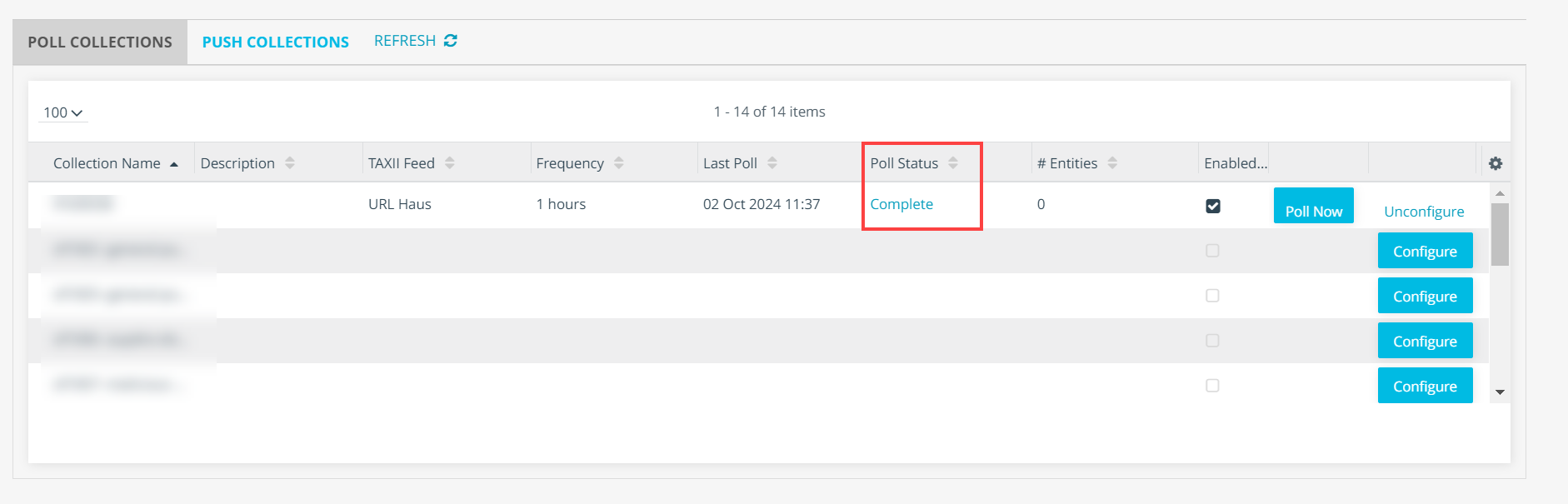
TAXII collection task logs are retained for a period of one year. To view all collection task logs, click the poll status link (any value).
Configuring Push Collections
You can also push data from ThreatStream to available collections on the TAXII server. Pushes can be configured to run on a regular interval and based on saved search filters. To read more about creating saved search filters, see Saving Observable Search Filters.
To configure a push collection:
- In the bottom-left corner of the side navigation panel, click > ThreatStream and then click TAXII.
- Under Sites, locate the TAXII server of interest and click to expand the site details.
- Click Push Collections.
- Click New.
- Under Collection Name, select the collection on the TAXII server to which you want to push.
- Enter an Interval to specify the cadence at which ThreatStream will push data to the collection.
- Enter a Start From date. This specifies the furthest timestamp you want to be polled. Click Now to use the current date and time.
- Select a Saved Search to specify the data you want to push to the collection.
- If required, enter your Subscription ID.
- To save the configuration and push data to the collection, click Save and Run Now.
After configuring the push collection, you can click the Push Status to view a complete log of push activity for the collection. Possible push status values include:
-
Complete: The last task run was completed without errors. Click Complete for details.
-
Error: The last task run was not completed due to some errors. Click Error for details.
-
Resting: The task run was not completed during the time allowed and will be resumed at the next scheduled time. Click Resting for details.
-
Running: The task is currently running.
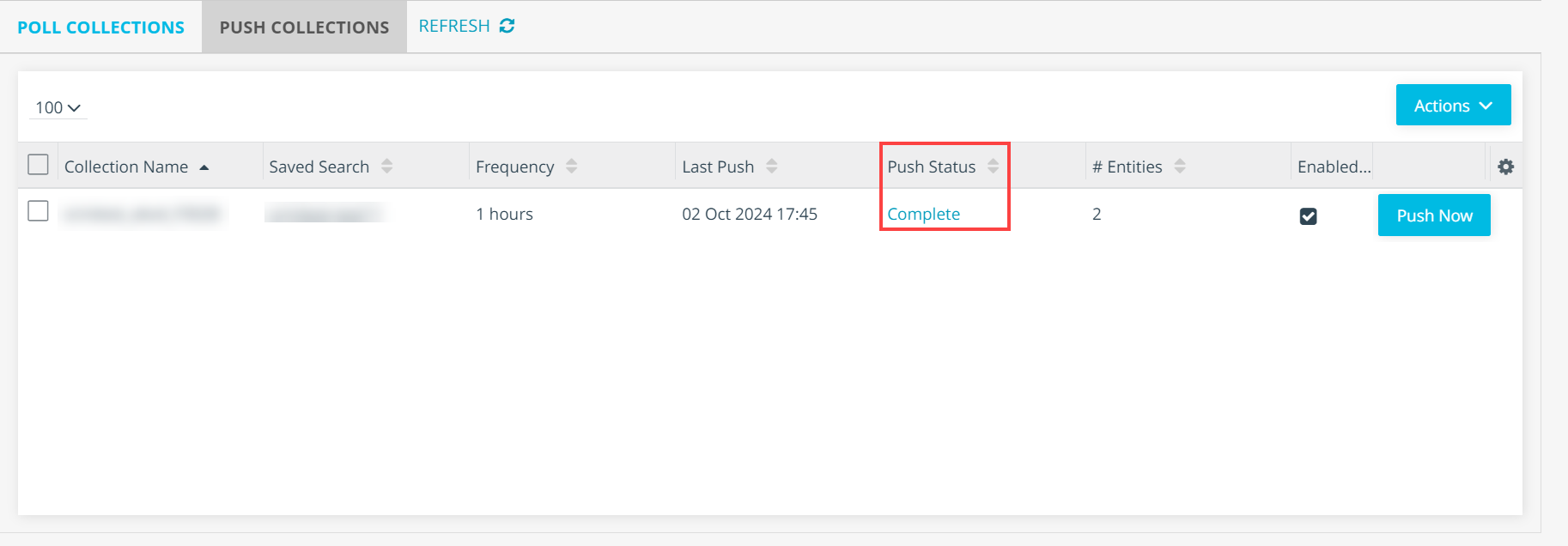
TAXII collection task logs are retained for a period of one year. To view all collection task logs, click the push status link (any value).